
How to use the Tesla part finder: step-by-step guide with screenshots
Short answer: open maplev.ca/oe-lookup/ and type or paste a Tesla part number, with or without dashes. The part finder shows the matching Model 3 or Model Y part, the cars and model years it fits, its Tesla OE numbers and our list price, and links to the part's page. Paste every part line of a collision estimate and it checks all the numbers in one pass. It is free and needs no account.
This guide goes through every screen, from the first search to installing the finder as an app and adding it to your own website. The screenshots were taken on maplev.ca on October 5, 2026; prices, counts and parts on the live page follow the catalogue and may differ. For what the finder covers and the open data behind it, see the companion guide, Free Tesla part finder.
Step 1: Open the lookup page
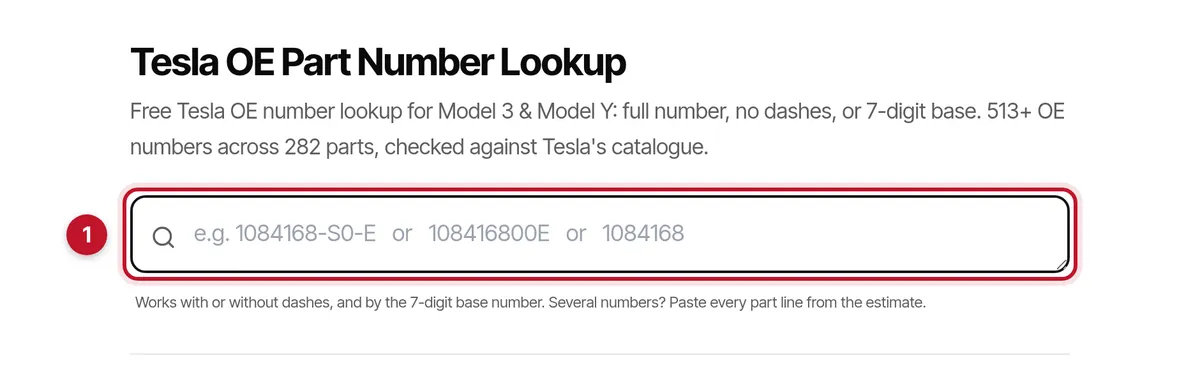
Go to maplev.ca/oe-lookup/ on a phone, tablet or computer; the French version is maplev.ca/fr/oe-lookup/. The search box (1) sits under the page title. It takes a Tesla OE number in the forms you meet in a shop: the full number with dashes, the same number without dashes, or only its first seven digits, the base number.
This page needs no account and no app. The other ways to use the finder — the browse view, the installable app, the Chrome extension and the box for other websites — are covered in steps 4, 6 and 7.
Step 2: Search one part number
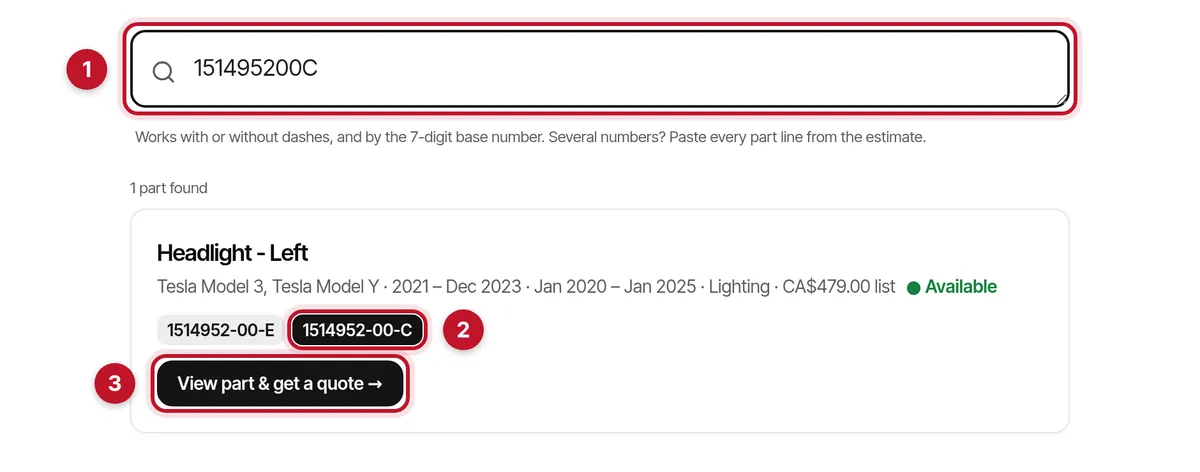
Type or paste the number (1). Dashes and spaces make no difference: 1514952-00-C, 151495200C and 1514952 00 C all find the same part, and the results appear as you type, with no search button to press.
Each result card names the part and shows the cars and model years it fits, the part type, our list price and every Tesla OE number we have for it. The number you searched is highlighted (2): in the example, 1514952-00-C is a revision of the left headlight that we list under 1514952-00-E. Select View part & get a quote (3) to open that part's page.
Typing only the base number, 1514952, lists every version we carry. When nothing matches, the page suggests trying the base number, and its contact link carries the number you typed into the message, so you do not have to type it again.
Step 3: Check a whole estimate in one pass
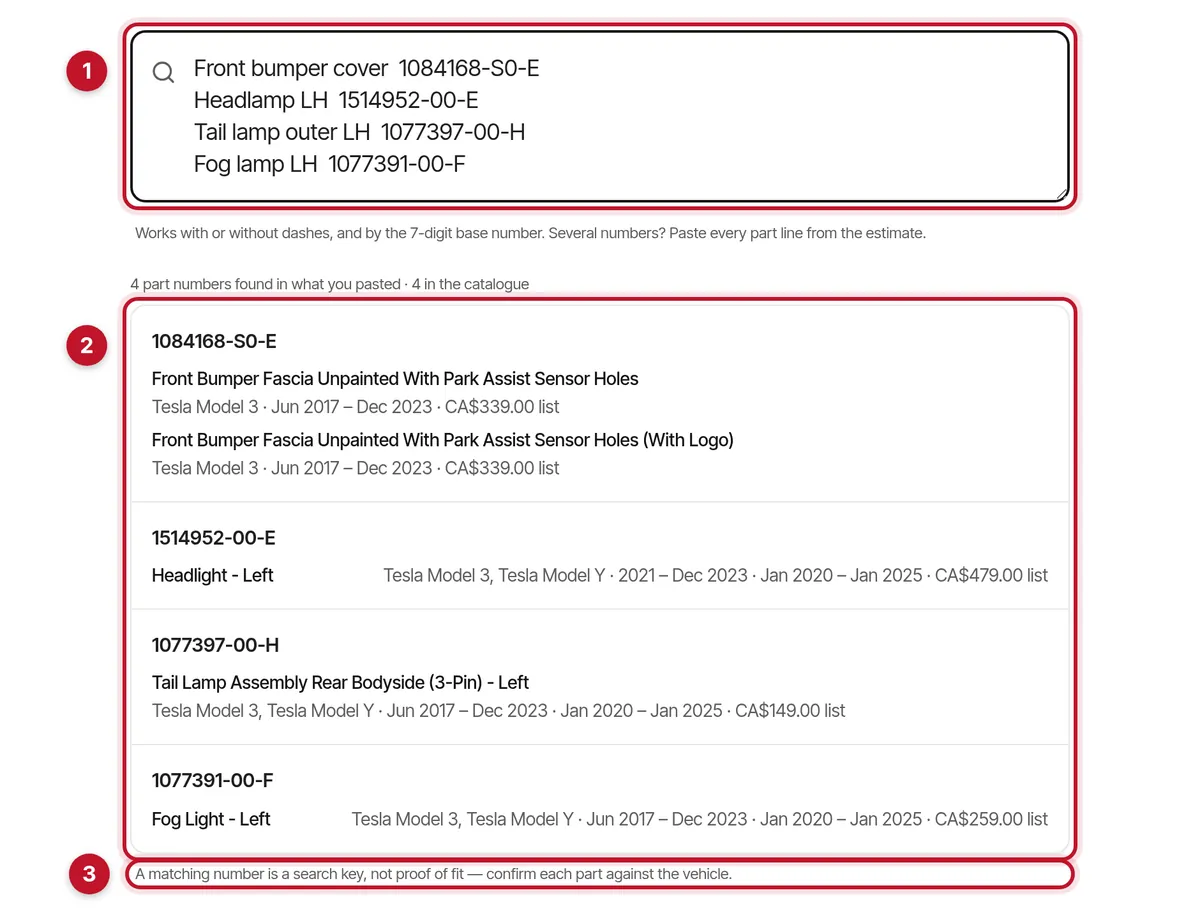
For a collision estimate with several Tesla parts, copy the part lines — from a Mitchell, CCC or Audatex estimate, an email or a spreadsheet — and paste them into the same box (1). The finder picks out every Tesla part number in the text, up to 40 in one paste, so part names, quantities and prices can stay in. It looks for seven-digit numbers starting with 1 or 2, the shape of a Tesla part number; other figures on an estimate, such as claim numbers, are mostly left alone, and the rare one that slips through shows as not in our catalogue.
The result is one row per number (2), with a count above the list — here, 4 part numbers found and 4 in the catalogue. Each row gives the part or parts that carry that number, the years they fit and our list price. A row marked Same 7-digit base, different version means we carry another revision of that part, so confirm it against the car before ordering. A row marked Not in our catalogue has a link to send us the number.
As the line under the list says (3), a matching number is a search key, not proof of fit. Tesla changes some parts within a model year — sensor holes, connector pins, headlamp type — so check each part against the vehicle.
Step 4: No part number? Browse by car and part type
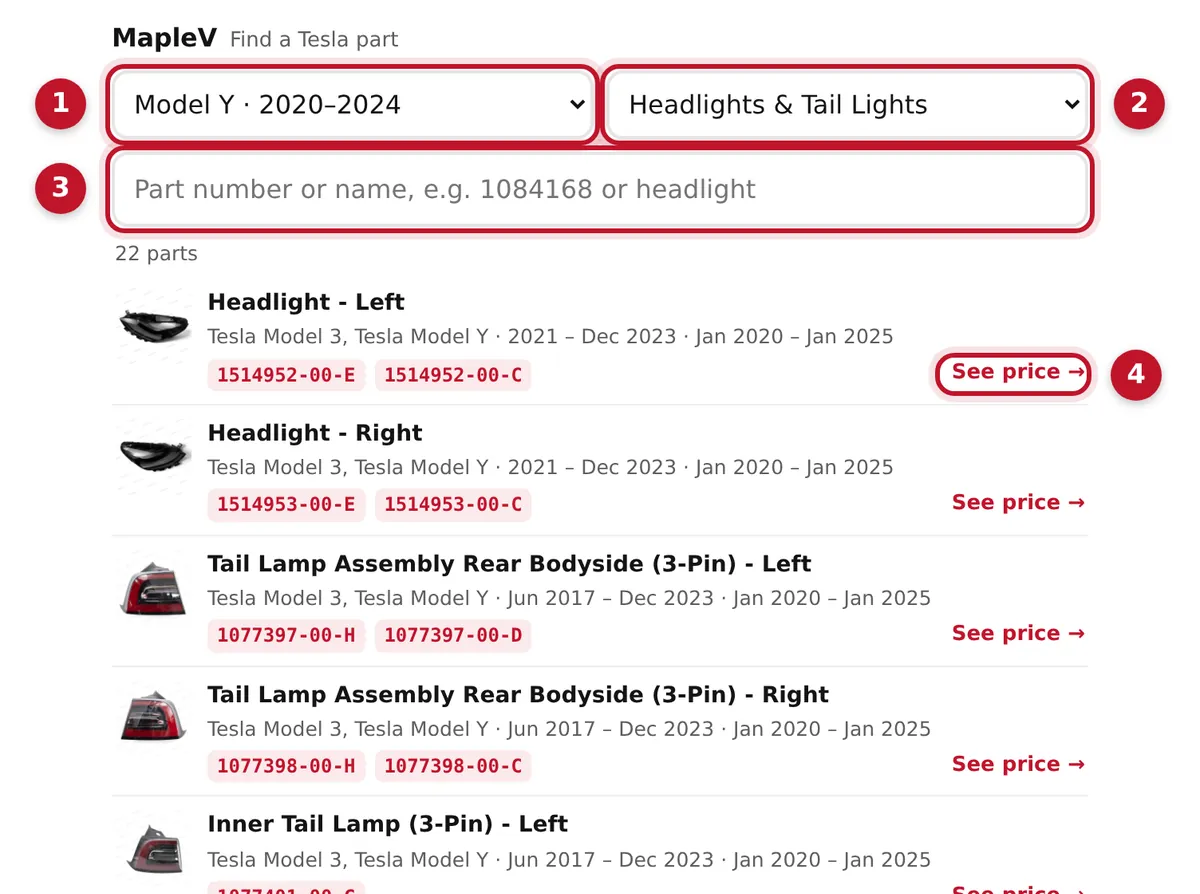
If you know the car and the damaged area but not the number, use the browse view: it opens from the Add to my phone or computer button on the lookup page, and it is the same box other websites embed. Choose the car and its years (1) — Model 3 2017–2023, Model 3 Highland 2024+, Model Y 2020–2024 or Model Y Juniper 2025+ — then the part type (2), such as Headlights & Tail Lights, Fenders or Wheel & Fender Liners. The list fills in at once, each part with a photo, the years it fits and its Tesla OE numbers.
The search box (3) narrows the list by number or by name, in English, French or Chinese — "headlight", "phare" or "大灯". Select See price (4) to open the part's page with the price and availability.
Step 5: Check the part page before you order
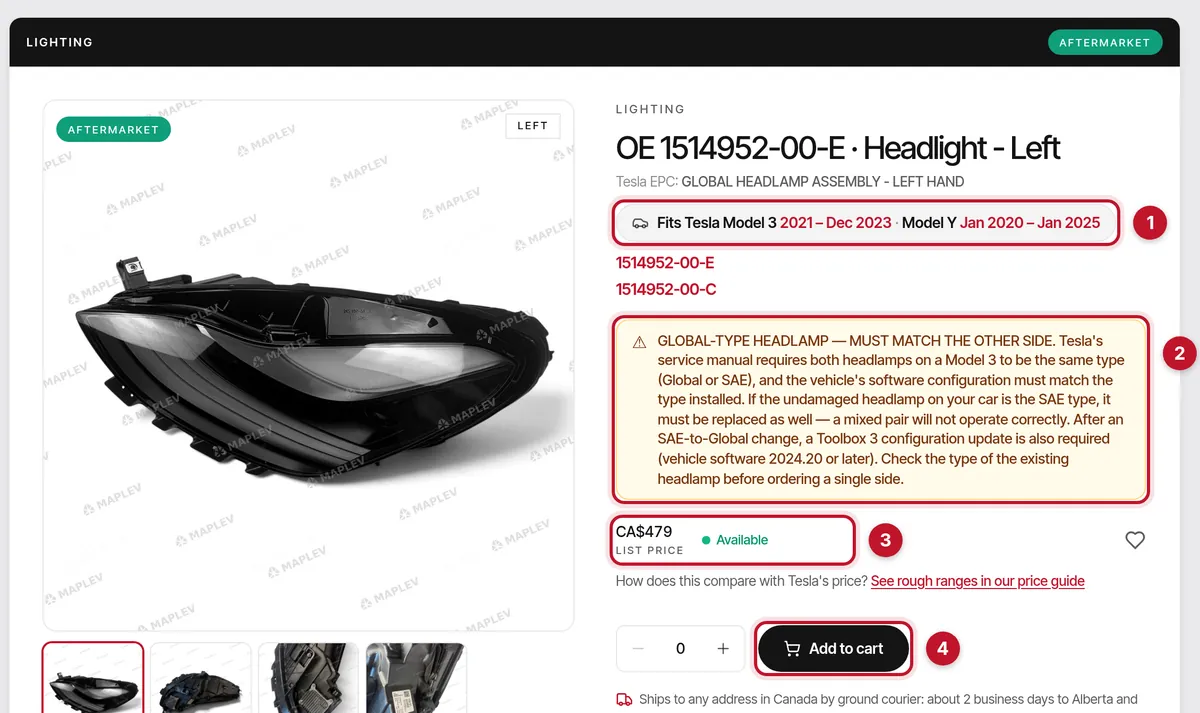
Every result leads to the part's own page on maplev.ca. Before ordering, read three things there. The fit line (1) gives each car with the production months the part fits. A warning box (2) appears on parts with a known trap: on the left headlight, it explains that both Model 3 headlamps must be the same type, Global or SAE. The price block (3) shows our list price and whether the part is available.
Then add the part to the cart (4). Delivery options for addresses across Canada are listed under the button.
Step 6: Install it as an app, or add it to Chrome
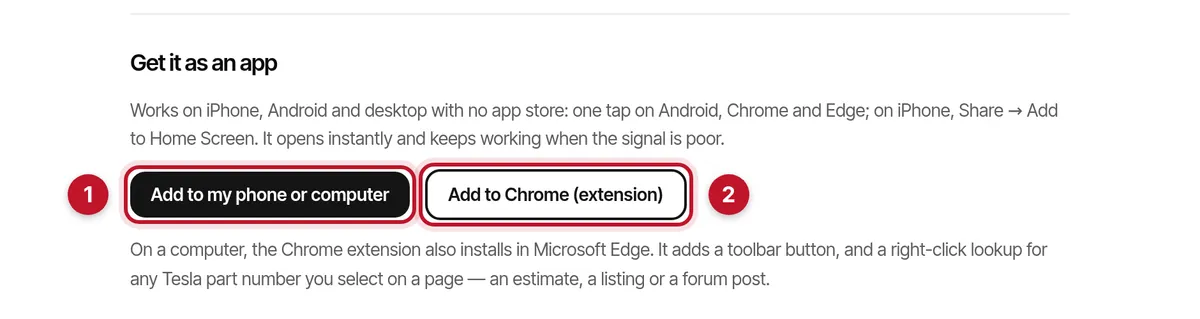
Near the bottom of the lookup page, under Get it as an app, are two buttons. Add to my phone or computer (1) opens the finder on its own page, ready to install without an app store: one tap on Android and in Chrome or Edge; on an iPhone, tap Share in Safari, then Add to Home Screen. The installed app opens straight to the browse view and keeps working when the signal in the shop is poor; part photos load when you are back online, and prices and ordering open on maplev.ca.
Add to Chrome (extension) (2) opens MapleV Tesla Part Finder in the Chrome Web Store; the extension also installs in Microsoft Edge. Its toolbar button opens the same lookup, and it adds one right-click item: select a Tesla part number on any page — an estimate, a listing, a forum post — right-click and choose Look up Tesla part number on MapleV.
Step 7: Put the finder on your own website
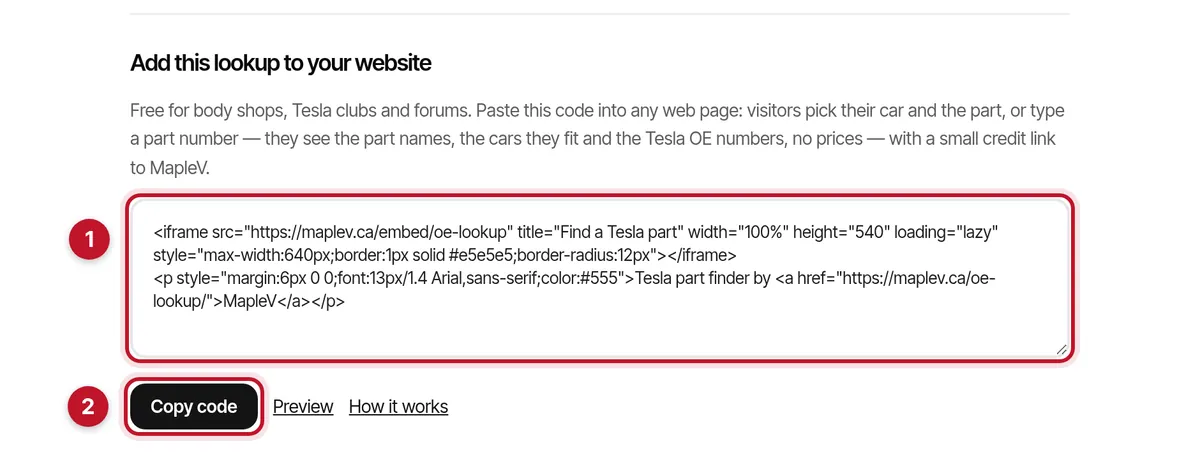
Body shops, Tesla clubs, forums and blogs can embed the finder for free. Under Add this lookup to your website, the code box (1) holds a short snippet; select Copy code (2) and paste it into any page that accepts HTML — most website builders have an embed or custom-HTML block for this. Preview shows the box as your visitors will see it.
Visitors choose their car and the part, or type a number, and see part names, fit and Tesla OE numbers — no prices — with a small credit link to MapleV. The box loads from maplev.ca, so new parts and corrected numbers reach your page without any work on your side. The French code is on maplev.ca/fr/oe-lookup/.
Share a list of part numbers as a link
To send someone a ready-made check, put the numbers after #q= at the end of the lookup address, separated by commas: maplev.ca/oe-lookup/#q=1514952-00-E,1077391-00-F opens the page with both numbers already looked up. Everything after the # stays in the browser; it is not sent to our server.
Tips and limits
Use the full number when you have it. The base number finds every revision we carry, but revisions can differ: the Model 3 tail lamp, for one, comes in 3-pin and 4-pin versions with different numbers, explained in the guide below.
The finder covers the Tesla Model 3 and Model Y parts in MapleV's catalogue, not Tesla's whole parts catalogue. It does not decode a VIN, and the browse view and the box on other websites show no prices. MapleV is an independent supplier of aftermarket replacement parts and is not affiliated with Tesla, Inc.; OE numbers are shown for identification and cross-reference only.
Frequently asked
Is the Tesla part finder free?
Yes. Searching, pasting an estimate, the app, the Chrome extension and the code for other websites are all free, and none of them needs an account.
Can I check several Tesla part numbers at once?
Yes. Paste the part lines of an estimate, or a list of numbers, into the box on maplev.ca/oe-lookup/. It checks up to 40 numbers in one paste and shows one row per number.
What does Same 7-digit base, different version mean?
We carry a part with the same seven-digit base number but a different suffix, usually another revision. Revisions can differ in fit, so confirm the part against the car before ordering.
Does the part finder work in French?
Yes. The French lookup is at maplev.ca/fr/oe-lookup/, the browse view and the app have French versions, and the search box understands French part names such as phare.
Does it work without a signal?
The installed app keeps the lookup working when the signal is poor, and part photos load when you are back online. Prices and ordering need a connection.
Is the part finder made by Tesla?
No. MapleV is an independent supplier of aftermarket replacement parts and is not affiliated with Tesla, Inc. Tesla OE numbers are shown for identification and cross-reference only.
Sources
- MapleV — Tesla OE number lookup, where every screenshot in this guide was taken
- Chrome Web Store — MapleV Tesla Part Finder: the browser extension
- GitHub — maplev-ca/tesla-part-finder: the browser extension source
- GitHub — maplev-ca/tesla-oe-cross-reference: the open dataset behind the finder (CSV + JSON, CC BY 4.0)